What a public link shares
The public page shows the experiment the way your team reads it: Matrix, Frictions, Runs, and each run’s Traces, Output, and Evals, plus the tasks, treatments, and the Evals and Insights models that ran.
Before it publishes, Obss replaces the experiment’s internal IDs with public IDs and removes text that looks like a credential. If such text remains, Obss doesn’t publish the page.
Frictions on the public page don’t show the suggested fix or what the agent did, and they count only the published runs.
The link is unlisted: Obss has no public list or search of shared experiments, and the page asks search engines not to index it.
Publish an experiment
You can publish an experiment whose status is Completed or Needs review. Each experiment has at most one public link at a time.- Dashboard
- CLI
- Plugin (MCP)
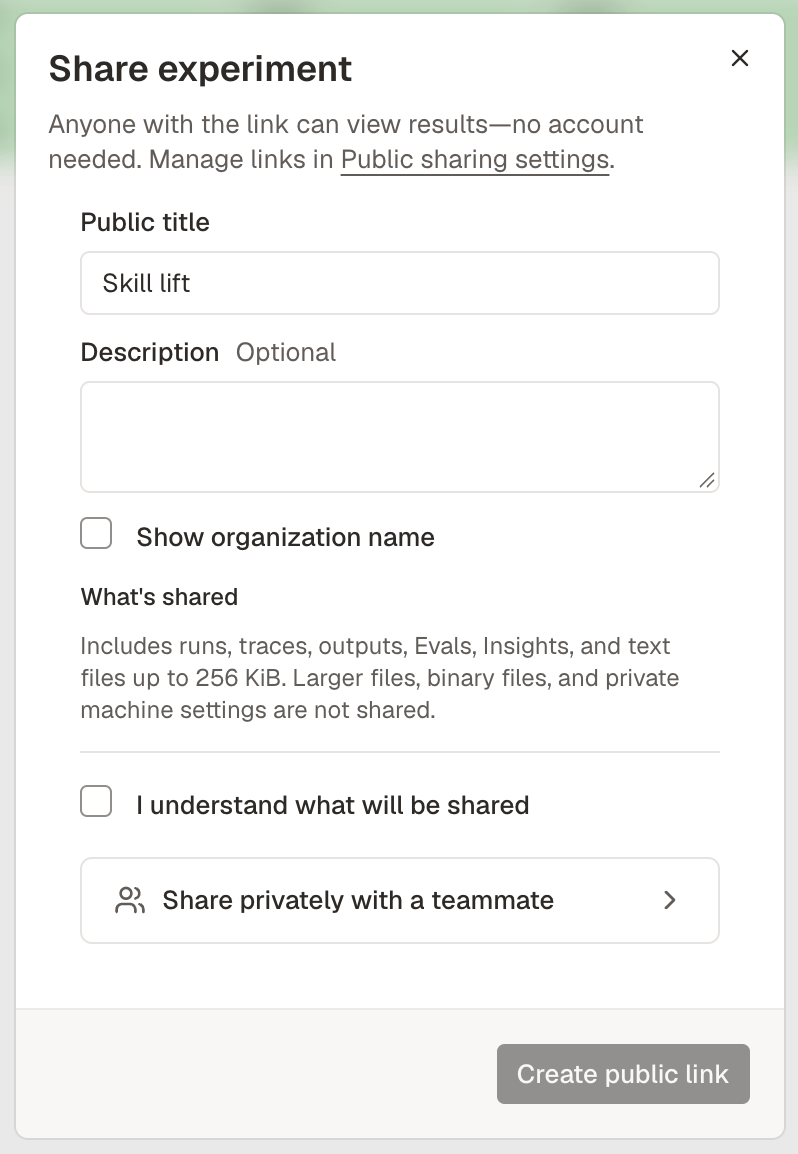
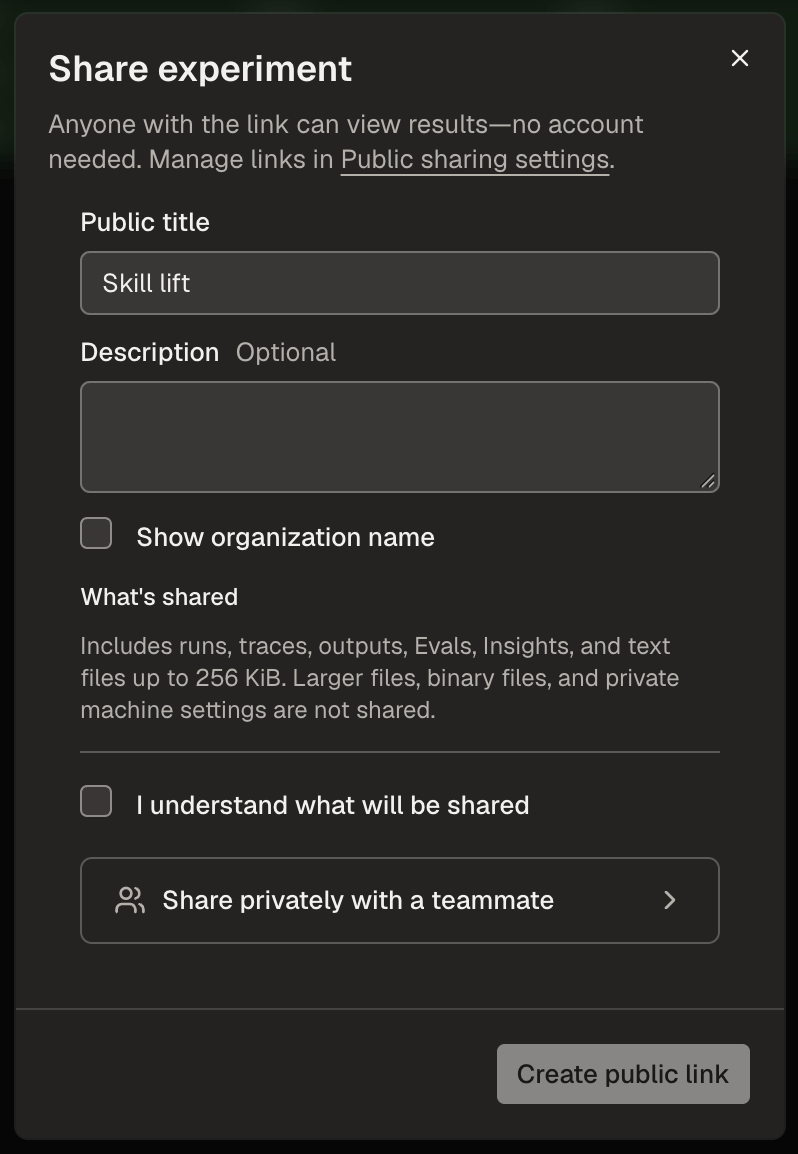
- Open the experiment and select Share.
- Enter a Public title (up to 120 characters) and an optional Description (up to 2,000 characters).
- Select Show organization name if you want your organization’s name on the page. It is off by default.
- Read What’s shared, then select I understand what will be shared.
- Select Create public link.
Manage public links
Organization settings → Public sharing lists your organization’s public experiments. It appears when your organization can share publicly or already has a public experiment.
Use Search public experiments to find a link. Each row’s actions menu has Open public page, Copy public link, View experiment, Publish update, and Unpublish, when they apply.
A status can have a note under it:
- New results available: the experiment has new Evals, Insights, frictions, or other results since you published.
- Update failed: the update wasn’t published, and the current page stays live.
- Removing shared files: the link is unpublished, and Obss is removing its files.
Publish an update
Publish new results to the same link. The update replaces the results at the link, and the previous results stay live until it’s ready.- Dashboard
- CLI
- Plugin (MCP)
- Open Organization settings → Public sharing.
- In the experiment’s actions menu, select Publish update.
- Confirm with Publish update.
Unpublish an experiment
Unpublishing stops the public link at once, then Obss removes the shared files. Publishing it again creates a new link, and the old link never works again.- Dashboard
- CLI
- Plugin (MCP)
- Open Organization settings → Public sharing.
- In the experiment’s actions menu, select Unpublish.
- Confirm with Unpublish.
List your organization’s public experiments
- Dashboard
- CLI
- Plugin (MCP)
Open Organization settings → Public sharing (manage public links).
Share privately with a teammate
Once a teammate joins your organization, they can open every experiment in the dashboard. A teammate link creates no public page.- Open the experiment and select Share.
- Open Share privately with a teammate.
- Select Invite teammates to invite them under Organization settings → Members.
- Select Copy link and send the experiment’s dashboard link to your teammate.
From the CLI and the plugin
Anyone can read a public experiment’s results as structured data, without signing in.obss gallery get takes the public link or its pub_ ID and a section, such as matrix, runs, or frictions. In the plugin, the tool is Get results from a public link (get_public_experiment).