
- A connection to the Obss MCP server at
https://mcp.obss.app/mcp, with the same capabilities as the CLI and Ask Obss. This server operates your projects, and it’s separate from the MCP servers that you add as tools. You sign in with OAuth, not an API key. - Four skills that teach your AI assistant to build a good eval set, launch it safely, and read the results correctly.
Prerequisites
- An Obss account in an organization with at least one project.
- ChatGPT (Codex), Claude Code, Cursor, or GitHub Copilot. If your host doesn’t support plugins, connect without the plugin.
Install the plugin
Add theobss marketplace (the plugin list your host installs from), then install the obss plugin. Both come from the public Obss-Inc/agent-plugin repository, so you don’t need a GitHub sign-in.
- ChatGPT (Codex)
- Claude Code
- Cursor
- GitHub Copilot
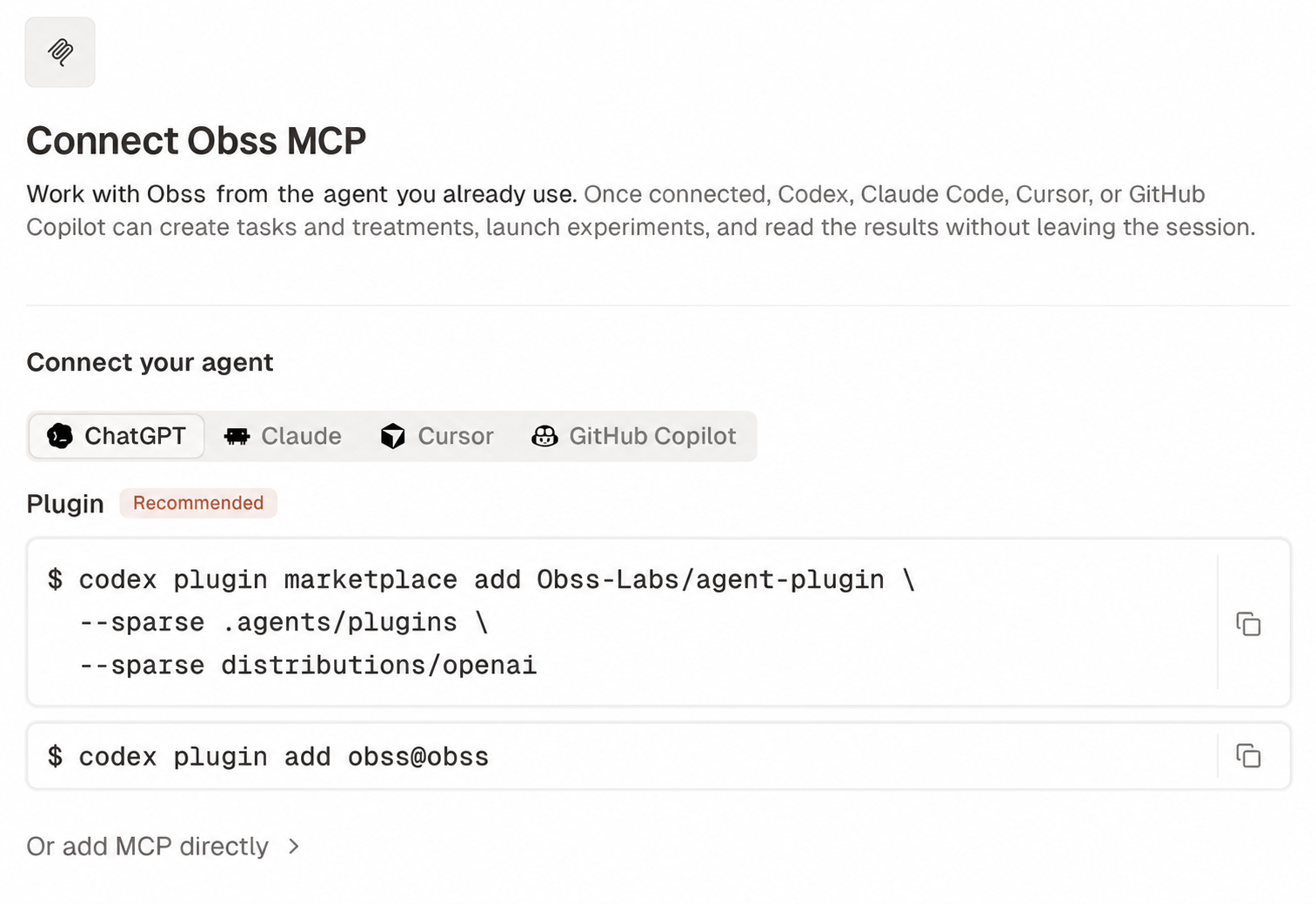
https://docs.obss.app/llms.txt.
Sign in
The first time your host connects, it opens Obss sign-in in your browser. After that, your AI assistant acts as you in your organization (sign-in rules).
To check the connection, start a new session and ask who you’re signed in as. Your AI assistant calls Get the signed-in user and organization (
get_identity) and shows your organization.
Turn on tool approval
In your AI assistant’s tool approval settings, don’t auto-approve Obss tools that change data, such as Launch an experiment (launch_experiment). Your host then asks you before each call. Learn more in Approvals.
What your AI assistant can do
When a step needs a secret, such as an API key, your AI assistant gives you the dashboard link (secrets stay in the dashboard). Plugin (MCP) tools lists every tool.
Name the project in your request. The plugin has no current project, so a call that names none can act on a different project than you meant.
Try a first prompt
Build an eval set and read its results
Replace the product name, docs link, and project name with your own.1
Build the eval set
Ask your AI assistant:The
product-eval-authoring skill reads the docs, posts a plan, and creates the machine, files, tools, treatments, and tasks, mostly with Create or update many resources (bulk_author_resources). It then runs Check an experiment plan before launch (preflight_experiment) and lists each missing secret with its dashboard link.2
Finish setup in the dashboard
Open each link and enter the API keys, secret headers, or OAuth sign-ins. Check under Manage → Agents that the agents you want to compare are on.
3
Launch the experiment
Ask your AI assistant:The
product-eval-results skill checks the plan and tells you the run count. After you agree, it launches with Launch an experiment (launch_experiment) and follows it with Get experiment status (get_experiment_status) until it finishes. With tool approval on, your host asks you before the launch.4
Review the results
Ask your AI assistant:It uses Analyze experiment results (
analyze_results) and List a project’s frictions (list_frictions). To see the results visually, open the experiment’s Matrix and Frictions in the dashboard.Skills in the plugin
Your AI assistant loads a skill when your request matches it. You can also name one in your request.
With the skills, your AI assistant:
- Posts a plan (tasks, treatments, and the runs a launch uses) before it creates anything, then goes ahead, so reply right away if you want changes.
- Checks the plan with
preflight_experimentbefore it launches, and suggests at least two trials. - Says which Evals and Insights results are still pending.
Update or remove the plugin
Update the plugin
Refresh the marketplace, update the plugin, and start a new session in your host.- ChatGPT (Codex)
- Claude Code
- Cursor
- GitHub Copilot
codex plugin list -m obss shows the installed version.Turn off or remove the plugin
Turn the plugin off to pause it, or remove it to delete its skills and Obss connection from your host. Neither changes anything in your Obss organization.- ChatGPT (Codex)
- Claude Code
- Cursor
- GitHub Copilot
To turn the plugin off or on, start
codex, type /plugins, select obss, and press Space. You can also set enabled = false under [plugins."obss@obss"] in ~/.codex/config.toml.To remove the plugin and its marketplace:Troubleshoot the plugin
An install command fails
- Unknown command or flag: update the host and run the command again. If your host doesn’t support plugins, connect without the plugin.
- The
obssmarketplace already exists: skip that command and run the install command. - Download errors: the commands download the plugin from
github.com, so check that your network can reach it.
Sign-in does not open or does not finish
Follow the sign-in step for your host. Hosts show the Obss server asobss, except Claude Code, which shows plugin:obss:obss. If Claude Code shows only obss, you also have a direct connection.
If you belong to more than one organization, choose one on the sign-in page. If calls fail with organization_ambiguous, sign in again and choose one. To switch organizations, sign out in your host and sign in again.
Obss tools or skills are missing
- Start a new session. Hosts load a plugin’s tools and skills when a session starts.
- Check that the plugin is installed and on:
codex plugin list -m obss,claude plugin list,copilot plugin list, or Installed in Cursor Agent’s/plugin. - Check that the Obss server is signed in, because tools appear only after sign-in. Open
/mcpin Claude Code, Cursor Agent, or GitHub Copilot, or runcodex mcp list. - If the tools work but the skills are missing, you have a direct MCP connection instead of the plugin. Install the plugin and remove the direct connection, or add the skills without the plugin.
The plugin and a direct connection are both set up
When your host has both the plugin and a direct connection tohttps://mcp.obss.app/mcp, the Obss tools can appear twice, or the host hides the plugin’s server. Claude Code, for example, then shows only obss and not plugin:obss:obss. Keep the plugin and remove the direct connection:
The plugin’s server stays. Start a new session and sign in to it.
For other problems, see Troubleshooting or email support@obss.app.
Connect without the plugin
Use these steps when your host doesn’t support plugins, or to search these docs from your host. For a terminal, a script, or CI, use the CLI.Use the plugin or a direct connection in a host, not both. Learn why in The plugin and a direct connection are both set up.
Add MCP directly
A direct connection gives your AI assistant the Obss MCP server without the skills. The commands also add the optionalobss-product-docs server, which searches these docs and works with or without the plugin.
- ChatGPT (Codex)
- Claude Code
- Cursor
- GitHub Copilot
Add the skills without the plugin
To use the skills with a direct MCP connection or the CLI, install them with the open-source Skills CLI. It asks which AI assistants to add them to, and installs into the current project unless you add-g for all projects:
npx skills update gets the latest skills, and npx skills remove removes them. Don’t use this in a host that has the plugin, or it gets two copies of each skill. The skills use MCP tools, and some steps also give the matching CLI command.
Next steps
Measure a tool's impact
Run your first lift experiment from your AI assistant.
Plugin (MCP) reference
Read about sign-in, approvals, secrets, IDs, paging, and errors.
Plugin (MCP) tools
Look up every tool, with its parameters and CLI command.
Use the CLI
Use the same capabilities from your terminal and scripts.