
Files
A file is a folder such as a repository, sample data, or fixtures. The agent can read everything in it, so keep secrets out of files. Put API keys and tokens in machine variables or tool values, which you enter in the dashboard.Add files
Open Manage → Files, select Add files or folders, and choose where the folder comes from:- Upload adds folders or files from your computer. Each upload becomes one folder.
- From GitHub saves a snapshot of a public
github.comrepository, branch, and folder at the resolved commit, with the same steps as importing skills. To get later changes, open the folder and select Check for updates. Finished runs keep the content they used.
Attach files to a task
Open the task’s Files tab, search the project’s folders, and attach the ones the task needs.Mount paths
Each file appears at a path relative to the agent’s working directory. In the dashboard, the path is the file’s name, such ascustomer-fixtures/. Use that path in the task instructions (“Fix the app in helpdesk-web/”), never an absolute path such as /home/user/helpdesk-web, where the agent can’t find the files.
From the CLI or the plugin, you set each file’s mountPath:
- Use a relative path, such as
helpdesk-webordata/customer-fixtures. - Use
.to put the file’s contents in the working directory itself. - Give each file its own path.
- Don’t start the path with
/,~, a dot (except the path.itself), or the foldertaskorenvironment. - In a longer path, don’t use empty,
., or..parts.
Git history
The agent always starts in a Git repository, and Obss keeps the history you give it:- An uploaded folder that contains a
.gitfolder keeps its commits, branches, and authors. A snapshot from GitHub holds the files at one commit, without history. - A repository that a machine setup command clones into
/appkeeps its history too. - If the working directory has no repository when the agent starts, Obss creates one with a single commit of the files that are there.
Machines
Make the machine a realistic developer setup for the person you’re building for. Each run gets a fresh machine, so nothing carries over between runs.Standard Dev Machine
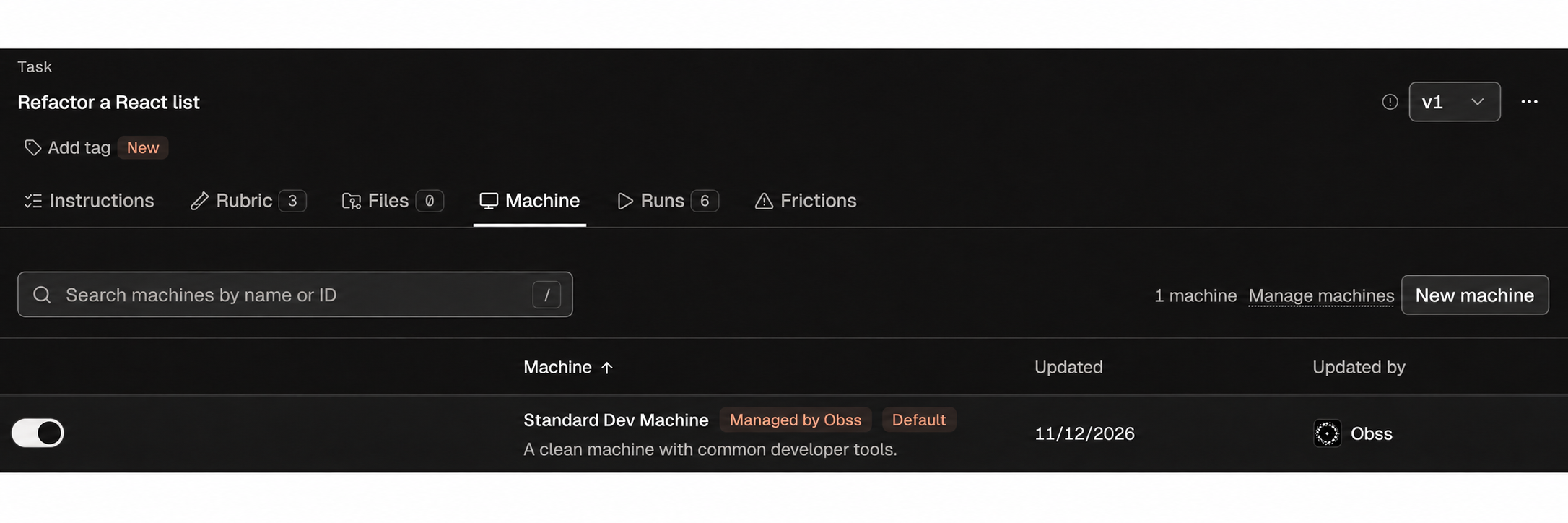
The Standard Dev Machine is a clean Ubuntu machine that Obss provides. You can’t edit or delete it, and it’s the project default until you set another.
It also has
bash, curl, jq, rg, ps, lsof, ip, netstat, psql, redis-cli, sqlite3, make, cc, c++, zip, unzip, xz, and bzip2.
To give agents an API key, a token, or more packages, create your own machine, because you can’t add them to this one.
Create a machine
Open Manage → Machines (Environments) and select New machine. A machine you create starts from the Standard Dev Machine and adds what you set in these sections:
A service has its own environment variables, and machine variables don’t reach it. To use one of the service’s variables in its command, run the command with a shell and write
$$NAME, for example sh -c 'exec redis-server --requirepass $$REDIS_PASSWORD'. A ready check can’t use a value.
View as YAML edits the whole machine as YAML. For a working example with a service, start from the Redis on a custom machine template.
Set as default makes a machine the project default for new tasks. Tasks that already exist don’t change.
Choose a task’s machine
Open the task’s Machine tab and choose a machine.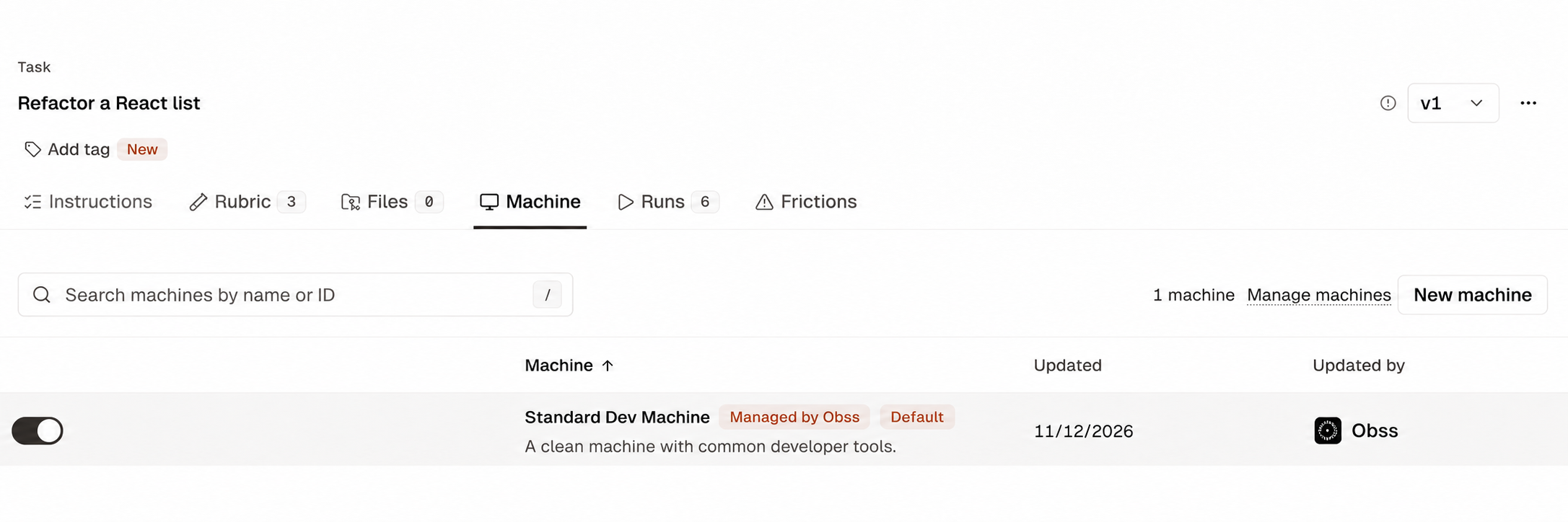
When setup commands run
At the start of every run, Obss prepares the machine in this order:- Build installs the machine’s packages and custom installs, then each CLI’s and SDK’s. Variables don’t exist yet, so anything that needs one belongs in a setup command.
- Setup runs the machine’s setup commands, then each CLI’s post-install commands in the order of the treatment’s tools. They run as the agent’s user in an empty
/app, with the run’s variables set, somycli auth login --token "${MYCLI_TOKEN}"leaves the CLI signed in for the agent. - Files that setup leaves in
/appare part of the starting workspace, not the agent’s work, and a process that setup starts in the background keeps running while the agent works.
If a setup command fails
If a command fails or setup reaches its time limit, the run stops before the agent starts. Obss doesn’t retry it, and it doesn’t use your run balance. The run page names the command that failed, for example CLI “mycli” post-install command 2 failed, and says what to fix. Fix the command, then launch the experiment again. For the messages and the fix for each, see Troubleshooting.Add required values
Mark a variable Required when a run can’t work without it. Until it has a value, the machine shows Needs values on Machines (Environments), and a notice on Home names the missing values. Add values opens the machine. You enter values only in the dashboard, and the CLI and the plugin return a link to the page. An empty optional value never blocks a run.When two places set the same variable
The agent gets one value for each variable name. When a CLI or SDK declares the same name as a machine variable, the CLI’s or SDK’s value wins in its treatments, even when the tool has no value saved. Other treatments get the machine’s value. An info icon beside the variable on the machine page names the CLI or SDK. Any other two places that set one name to different values stop the launch:- Two MCP servers
- An MCP server and the machine, or an MCP server and a CLI or SDK
- A custom agent and any of these
- Any of these and the agent’s model provider, for example a CLI variable
OPENAI_API_KEYnext to an OpenAI connection
variable_name_clash, which names both places and the tasks, treatments, or agents it stops, but never the values. Remove or rename the variable in one place.
Edge cases: scheduled launches, later changes, and personal connections
Edge cases: scheduled launches, later changes, and personal connections
- A model provider’s own credentials are checked only for organization connections. A personal connection is checked when the run starts.
- A scheduled launch isn’t stopped by this blocker. It starts as before, and only the runs with the clash fail when they start.
- If a value changes after the launch check, the run stops when it starts.
- A required machine variable can stay empty only when every treatment in the launch has a CLI or SDK that sets that name.
definition view of obss resources inspect machine and inspect_resource lists these names in variableOverrides, and obss experiments preflight and preflight_experiment return the blocker.
Node.js and agents
Every agent except Cursor runs commands with the machine’s ownnode and npm, the same ones your packages and setup use. Cursor uses the Node.js that comes with it. If setup changes Node.js, install it into /usr/local, not with nvm, and agents use that version too.
If an agent can’t run on the machine’s Node.js, the run stops when Obss installs the agent, and Obss doesn’t retry it. The run page shows The agent can’t run on this Machine’s Node.js with the versions, for example “Codex 0.167.0 needs Node.js >=22. This Machine has Node.js 20.11.1.” Change Node.js in setup or choose another agent, then launch again.
In November 2026, Codex, OpenCode, Qwen Code, and Pi moved from Node.js 22 and npm 10 to the machine’s Node.js 24 and npm 11, so their results before and after can differ.