
To review two or three runs side by side, see Compare runs side by side.
Traces
Traces shows what the agent did: the Timeline first, when the run recorded times, then the transcript.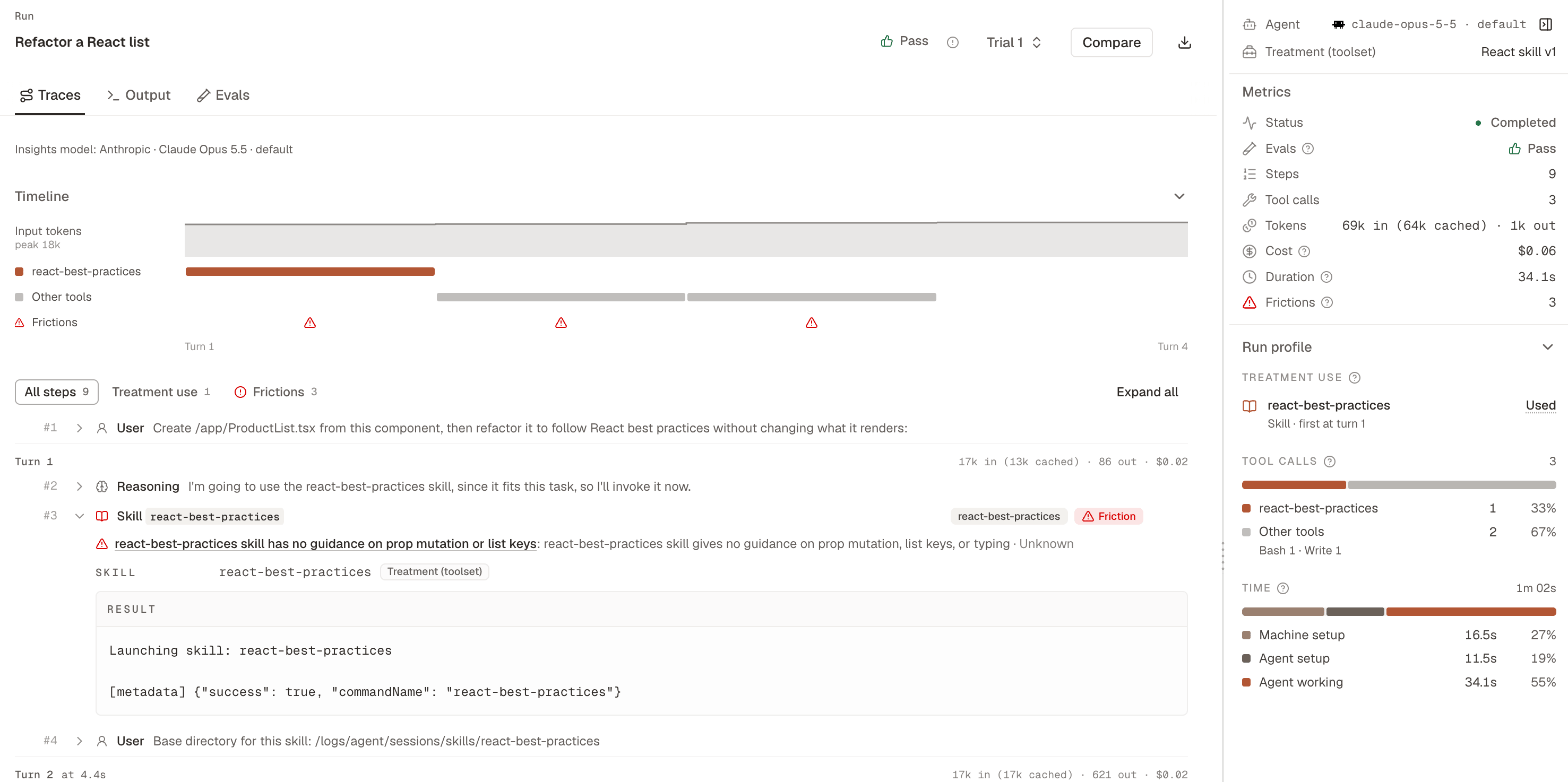
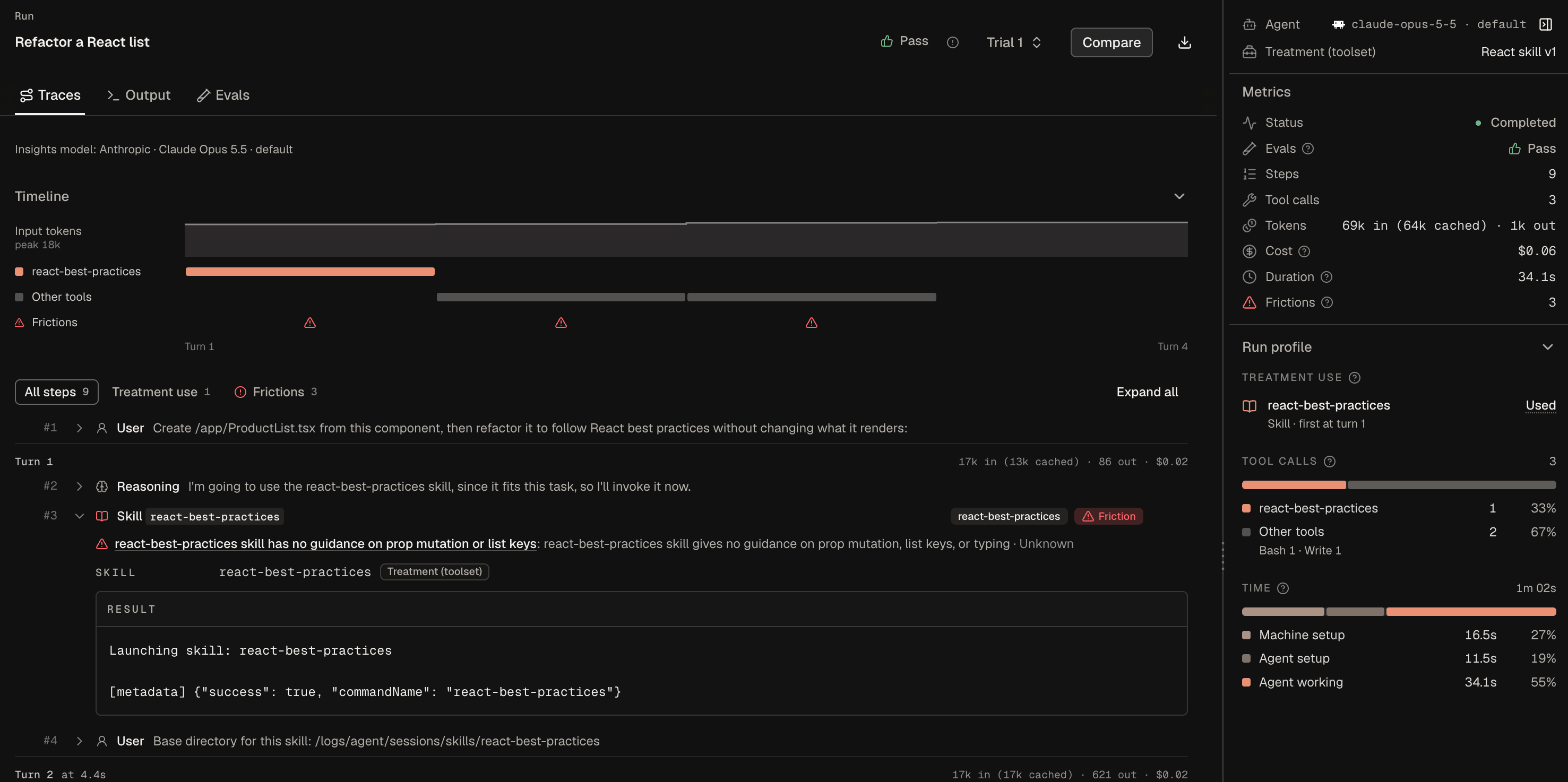
Timeline
Timeline shows when tool calls happened. It appears when the run has at least two model turns, or two steps if it recorded no turns. Each column is a turn, a short range of turns, or a step. Select a column to jump to it in the transcript. When a run has no Timeline, start at the transcript. Each row is a tool the agent called, in this order:- The tools in the treatment
- Other launched skills, MCP servers, or CLIs
- Other tools
Transcript
The transcript lists the same work by model turn. Each step starts as one line. Open a step to read the agent’s reasoning, the tool call, and the result, or use Expand all and Collapse all.
Each friction shows at the first step it cites. One that cites no step, or a friction on a run that recorded no steps, shows above the Timeline as No specific step. After Obss groups a friction, its name opens the friction’s page.
While the run is still going, Traces says Steps appear when the run finishes. If the run recorded nothing, it says No steps were recorded for this run.
Output
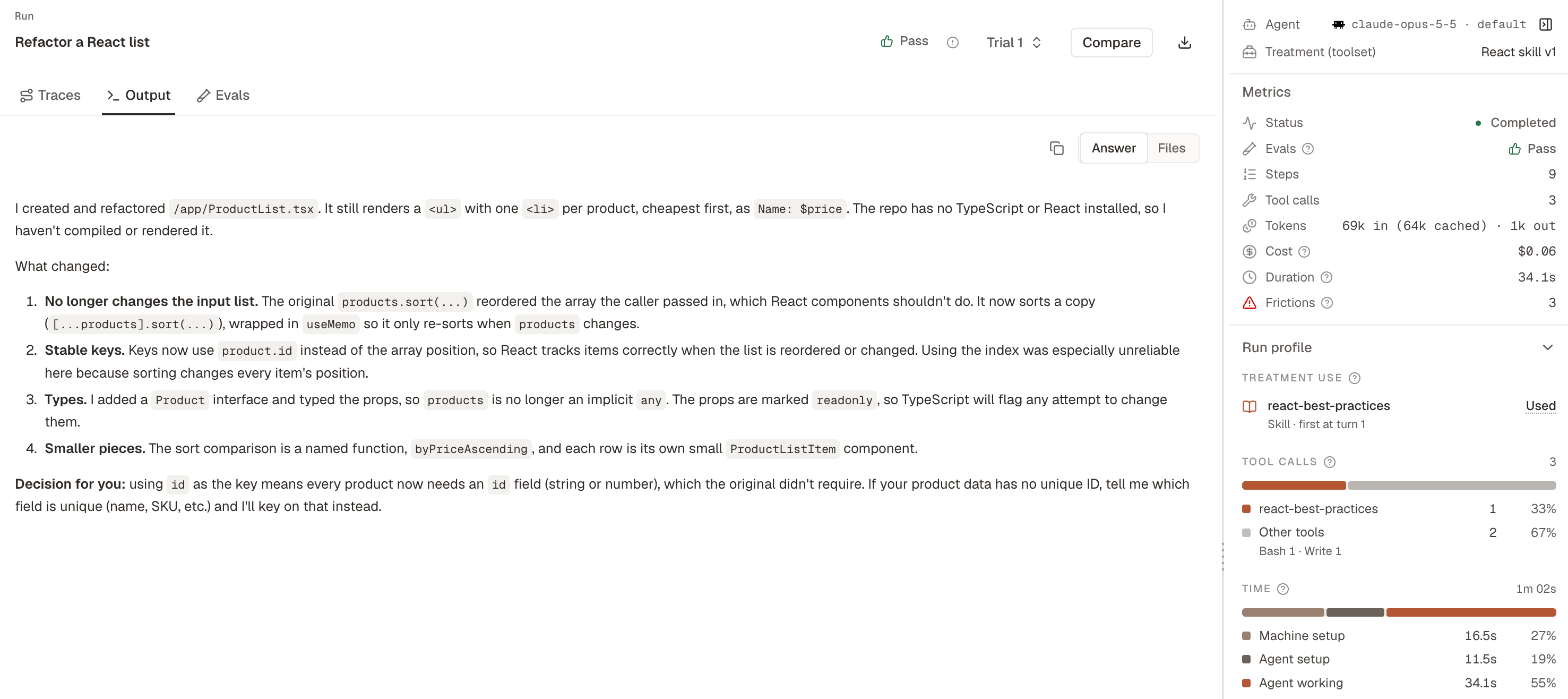
Output shows what the agent delivered:- Answer shows the agent’s final message. Select Copy answer to copy it.
- Files shows the changed files that the run recorded, each with its diff. Use Search files to find a file, and Download file to save one.
Download the trajectory
Open the run, then choose ⋯ → Download trajectory. The file is usually a.jsonl, .json, or .txt file, depending on how the trajectory is stored.
The same menu has Download output files and Download changes (diff), each shown only when the run has that file, and Cancel run while the run can still stop. A trace larger than 32 MB isn’t saved, so that run has no trajectory to download, though it keeps its outcome.