
Read notifications
Select the Notifications bell in the dashboard header. The inbox shows the current project’s notices and organization-wide ones, such as run balance and provider changes.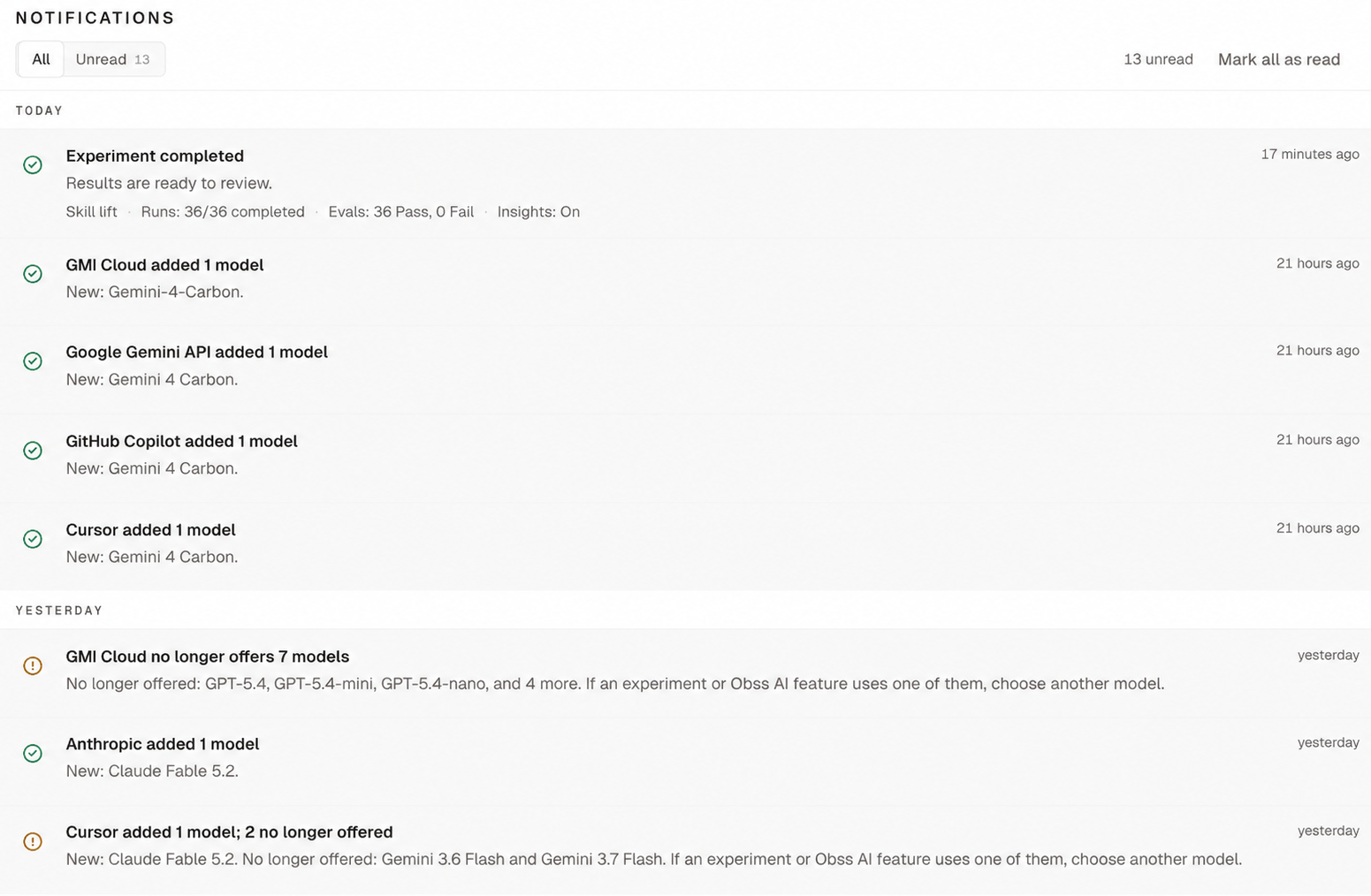
- Dashboard
- CLI
- Plugin (MCP)
- Select a notice to open what it’s about.
- Select See all notifications to open the Notifications page, with All and Unread tabs.
- Select Mark all as read when you’re done.
Choose your notification preferences
Your preferences on Profile → Notifications apply in every organization you belong to. For most kinds of notice, you turn Email and In-app on or off separately.
You get a notice when:
- Experiment updates: an experiment you launched or joined completes, has incomplete results, or stops with an error. These notices, such as Experiment completed, show who launched the experiment and the run balance. You also get one when a schedule you own pauses, skips three launches in a row, is short of runs, or is deleted with its experiment.
- Billing and runs: a plan starts, renews, or changes; runs are added, refunded, or disputed; a plan payment is due; or few or no runs remain.
- Connections and model providers: an MCP server or personal provider connection needs a new sign-in, a provider adds or removes models, or a model refresh fails. Model list changes show only in the app.
- Operational alerts: a deletion you started doesn’t start or needs attention.
- Dashboard
- CLI
- Plugin (MCP)
- Open Profile → Notifications.
- Turn Email or In-app on or off for each preference.
Schedule notices
Schedule notices follow Experiment updates. A notice that a schedule paused, is skipping launches, or is short of runs names the schedule in its title, such as Schedule paused: Nightly checkout, and the email names it beside the project. Because a schedule can launch many times a day, Obss limits its notices:- A scheduled experiment that finishes without problems sends no notice.
- One with problems, such as errors or failed Evals, sends an in-app notice.
- Email sends at most one of these a day for each schedule.
scheduleId for obss schedules get or get_schedule.
From the CLI and the plugin
A notice that needs a payment or a sign-in links to the dashboard, where those steps happen.