
Create a schedule
You need a finished experiment.- Dashboard
- CLI
- Plugin (MCP)
- Select Schedule on the experiment or in its row menu in All experiments. Or open Automate → Schedules, select New schedule, and choose the experiment.
- Choose Repeat, the time, and the Time zone (see Choose when it launches).
- Check First launch and Uses, then select Create schedule.
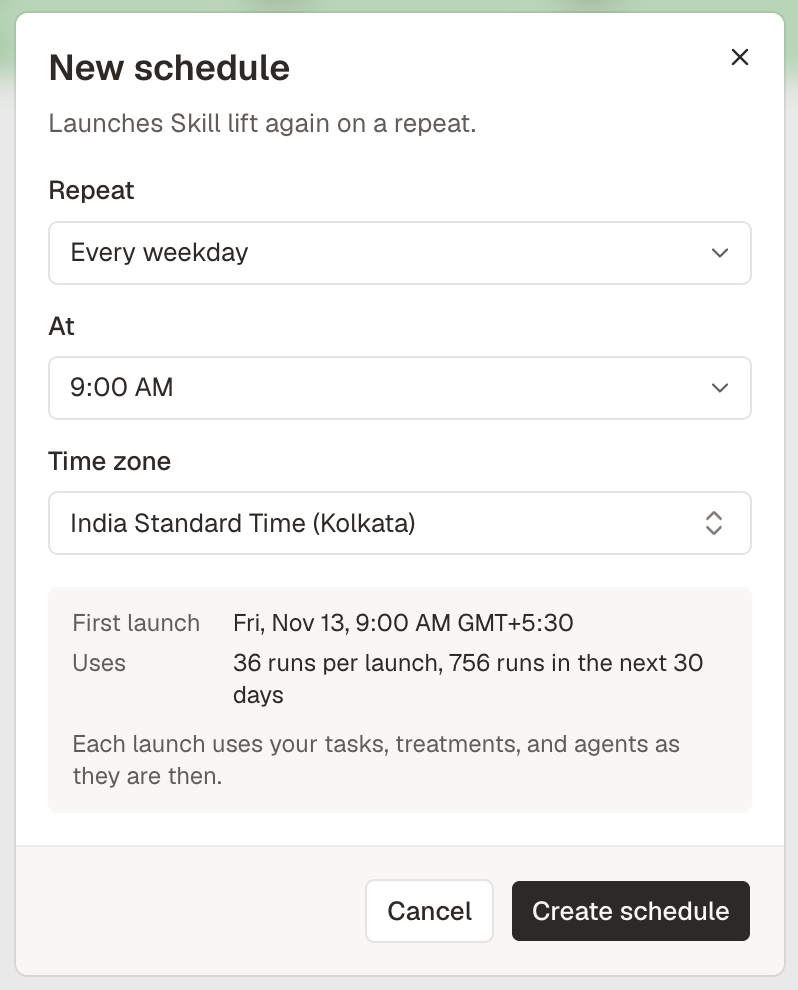
- First launch: the date and time of the first launch.
- Uses: the runs per launch and in the next 30 days (not a monthly average), for example “2 runs per launch, 44 runs in the next 30 days”. A slow repeat can read “none in the next 30 days”.
- Shortfall: if your runs won’t cover the launches, the dialog says how many runs to add and by when, with an Add runs link that opens Usage & billing in a new tab. You can still create the schedule. See Runs for scheduled launches.
Schedules launch on the quarter hour (minute 0, 15, 30, or 45), and at most once an hour. A project can have at most 50 active schedules.
Find the experiment in New schedule
Find the experiment in New schedule
The search finds every finished experiment in the project. Experiments that a schedule launched come last, under From schedules. Each result shows its status, when it ended, and where it came from, so you can tell experiments with the same name apart.
Schedule names
Schedule names
A schedule takes its experiment’s name. To rename it, select the name on its page. If you choose another experiment, a schedule you haven’t renamed takes the new experiment’s name, and a renamed schedule keeps its own.
Choose when it launches
Choose Repeat (Every hour, Every day, Every weekday, Every week, Every month, or Custom), then the time. Weekly and monthly schedules also need a day. A monthly schedule takes any day from the 1st to the 31st, or Last day. A month without that day gets no launch, and the dialog names those months:
To launch every month, choose Last day.
Custom cadence
Custom takes a cron expression with five fields: minute, hour, day of month, month, and day of week. For example,30 8 * * 1,3,5 launches at 8:30 AM on Monday, Wednesday, and Friday. The dialog describes the cadence in plain words and shows the next three launch times. If the expression isn’t valid, it says why.
Time zones
The Time zone starts as your browser’s time zone. A schedule launches in its own time zone and follows daylight saving time there. When clocks go forward, a launch in the skipped hour happens at the first valid time after it. When clocks go back, a launch in the repeated hour happens once. The dashboard lists zones by name and city, such as Pacific Time (Los Angeles). The CLI and the plugin take an IANA name, such asAmerica/New_York or Europe/London, or UTC.
Time zone names in the CLI and the plugin
Time zone names in the CLI and the plugin
- Abbreviations such as
ESTorBSTare refused, because they can point to a zone you didn’t mean. The error asks for an IANA name. GMTandEtc/GMTare stored asUTC.- Older names are stored under their current name, for example
US/PacificasAmerica/Los_AngelesandAsia/CalcuttaasAsia/Kolkata.
What happens at each launch
Each launch takes the schedule’s name and appears in All experiments and on the schedule’s page. Lists show where each one came from:
An experiment launched again by hand shows Parent: and the name of its parent experiment, the one it was launched from.
- Overlapping launches: if the schedule’s last experiment is still running, Obss skips that launch and tries again at the next one. After 3 skipped launches in a row, the owners get a Schedule skipping launches notification, and the schedule page shows how many it skipped. Choose a less frequent repeat, or cancel the running experiment.
- Completion notifications: a scheduled experiment that completes without problems sends no completion notification. One with errors or failed Evals sends one as usual, in the app, and by email at most once a day for each schedule.
- Missed launches: if Obss misses launches, such as during an outage, it launches once, then continues on the repeat.
Manage a schedule
Open a schedule from Automate → Schedules. Its page shows:- The experiment it launches, the repeat, the time zone, the next launch in that time zone (such as Wed, Nov 11, 9:00 AM PST), the runs it uses, and who it runs as.
- Its status: Active, Paused, or Needs attention.
- The tabs Experiments (every experiment it launched), Runs (their runs), and Frictions (those runs’ frictions).
Resume first checks the launch as you, and it doesn’t resume while a problem remains. It never launches at once: the next launch is the next scheduled time. When Obss paused the schedule, Resume is next to the fix link on the page, not in the action row.
If Obss paused the schedule because its experiment can’t launch again, Edit is the main button, and Launch now and Resume stay unavailable until you choose another experiment.
When Obss pauses a schedule
Obss pauses a schedule and shows Needs attention when:- A launch needs a fix from a person, such as a disconnected provider or no runs left. The page shows the reason, a fix link that opens in a new tab, and Resume. If something still blocks the launch when you select Resume, the page lists every problem with its fix link, and the schedule stays paused.
- The experiment can’t launch again, because some of its tasks, treatments, or models no longer exist. Select Edit and choose another experiment. When a deletion causes this, Obss pauses the schedule as soon as the deletion finishes.
- The person it runs as left the organization.
- Three scheduled launches in a row didn’t start.
- The experiment launches in Agent mode, and your organization can no longer use it. Launch the experiment again in Standard mode, point the schedule at the new experiment, and select Resume.
- Someone else changed what it launches, and it uses the personal account of the person it runs as (see Personal accounts).
Runs for scheduled launches
All your organization’s schedules spend the same runs. Obss adds up their launches in the order they happen and compares them with the runs you have now. The schedule page, the dialog, the CLI, and the plugin show the same estimate. For example: “Your 100 runs cover the next 5 scheduled launches. Add 20 runs before Fri, Nov 6, 9:00 AM PST to keep this schedule launching. Add 500 to cover every launch in the next 30 days.” The estimate stops when your runs next reset or expire, such as at plan renewal, so a renewal due before a launch doesn’t show as a shortfall. Paused schedules don’t count. Other experiments spend the same runs, so the numbers can change. When a launch, scheduled or not, leaves a schedule’s next launches short of runs, the owners get a Schedule short of runs notification in the app and by email, once for each launch time. The schedule stays on and keeps launching once you add runs. If a launch is still short when it’s due, Obss pauses the schedule.Delete a schedule
Deleting a schedule keeps the experiments it launched. Deleting the experiment a schedule launches again also deletes the schedule: the delete dialog names it first, and the schedule’s other owners get a Schedule deleted notification.- Dashboard
- CLI
- Plugin (MCP)
On the schedule’s page, open ⋯ and select Delete, then confirm.
Schedule details
Who a schedule runs as
A schedule runs as the person who created it, resumed it, or last changed when or what it runs. Each launch uses that person’s connections, such as personal integrations under Profile → Integrations, and shows their name as Launched by. If you resume or change a schedule that runs as someone else, it runs as you from then on, and the button reads Resume as you. Launch now runs as whoever selects it, and renaming a schedule doesn’t change who it runs as.Personal accounts
A scheduled launch can use the personal accounts of the person it runs as: their personal integrations for the agent or for Evals and Insights, and their own sign-in to an MCP server. Before such a launch, Obss checks what the launch gives the agent: the tasks and their files, the machines, the treatments and their tools, any custom agent, and the values saved for those machines and tools. If someone else changed any of these since that person last created, resumed, or changed the schedule, Obss pauses the schedule instead of launching. The page explains the pause and links the experiment, for example: “This schedule runs with Sam’s own account, and someone else changed what it launches since Sam last checked it.”Who can resume it, and what doesn't pause it
Who can resume it, and what doesn't pause it
- The person it runs as reviews the experiment and selects Resume. If another member resumes it, it runs as that member from then on.
- Changes by the person it runs as don’t pause it, and neither do Obss’s changes to its own official content.
- Obss doesn’t check a schedule that uses only organization connections. It doesn’t check Launch now either, because Launch now runs as you.
Links between schedules and experiments
To open an experiment’s details, select ! next to its status. They show the schedule that launched it under From schedule, and the schedules that launch it again under Schedules.When you delete what a schedule uses
Deleting a task, treatment, tool, file, or machine that a schedule’s experiment uses keeps the experiment. If the experiment can’t launch again after the deletion, the deletion pauses the schedule:- Before you delete, the delete dialog names each schedule that the deletion pauses, for example “Pauses the schedule Nightly checkout: it launches an experiment that uses what this deletes”.
obss resources delete --dry-runand Preview resource deletion (preview_delete_resources) list the same schedules. - When the deletion finishes, Obss checks each active schedule in the project and pauses each one that can’t launch. The schedule shows Needs attention and says “Edit the schedule and choose another experiment.” If that check can’t finish, the schedule pauses for the same reason at its next launch.
- You get a Schedule paused notification that says you deleted something it launches, and the schedule’s other owners get one that names you.
From the CLI and the plugin
Every dashboard action is also in the CLI and the plugin. Preview a schedule before you create or change it, because a preview changes nothing. Changes check the launch as you and take the schedule’slockVersion, so two people can’t overwrite each other’s edits. Flags, fields, and error codes are in the obss schedules reference and the Plugin (MCP) tools reference.