
Prerequisites
- An Obss account. Every organization starts on the free plan, which resets its runs each month.
- Access to models through an API key (such as OpenAI or Anthropic), a gateway (such as OpenRouter), or a personal subscription (such as ChatGPT or Claude). Model providers lists them all.
- Optional: the CLI or the Obss Plugin, to follow the CLI or Plugin (MCP) tabs.
Run your first experiment
1
2
Connect a model provider
On Home, select Connect models to get started (or open Organization settings → Model providers) and connect an API key or a gateway. Connect a personal subscription, such as OpenAI (ChatGPT Subscription) or Anthropic (Claude Subscription), under Profile → Integrations instead.When the provider lists its models, Home shows New experiment.
You enter secrets, such as API keys and OAuth sign-ins, only in the dashboard. The CLI, the plugin, and Ask Obss can’t accept them.
3
Check agents and the default model
Open Manage → Agents. Built-in agents are on by default, so check that at least one shows models, such as Claude Code with an Anthropic key or Codex with an OpenAI key. Agents lists which providers each agent supports.Then open Organization settings → Obss AI features and check that Default model has a model and no warning. Obss’s AI features (Evals, Insights, and Ask Obss) use this model from your providers unless you choose another under Advanced, and Obss can choose it for you when your first provider connects. If you plan to use Ask Obss, also check that the Ask Obss model meets its prerequisites.
4
Start from a template
- Dashboard
- CLI
- Plugin (MCP)
On Home, under Templates, select one of these:
Getting started is fastest, but its only treatment is Raw Agent, so it can’t show lift (the change in pass rate that a tool causes). Skill lift shows lift for a skill. Both have three tasks, so Comparisons shows No clear difference for them. Use them to learn the screens, and add tasks before you judge a skill.Obss adds the template’s tasks, tools, and treatments to your project and opens New experiment with them selected. Learn more in Templates.
5
Launch the experiment
- Dashboard
- CLI
- Plugin (MCP)
In the Configuration panel, review Tasks, Agents, Treatments (Toolsets), and Trials, and keep Evals and Insights on. The footer shows the runs the launch uses and how many you have left, for example Uses 3 runs. Select Launch.
6
Read the Matrix
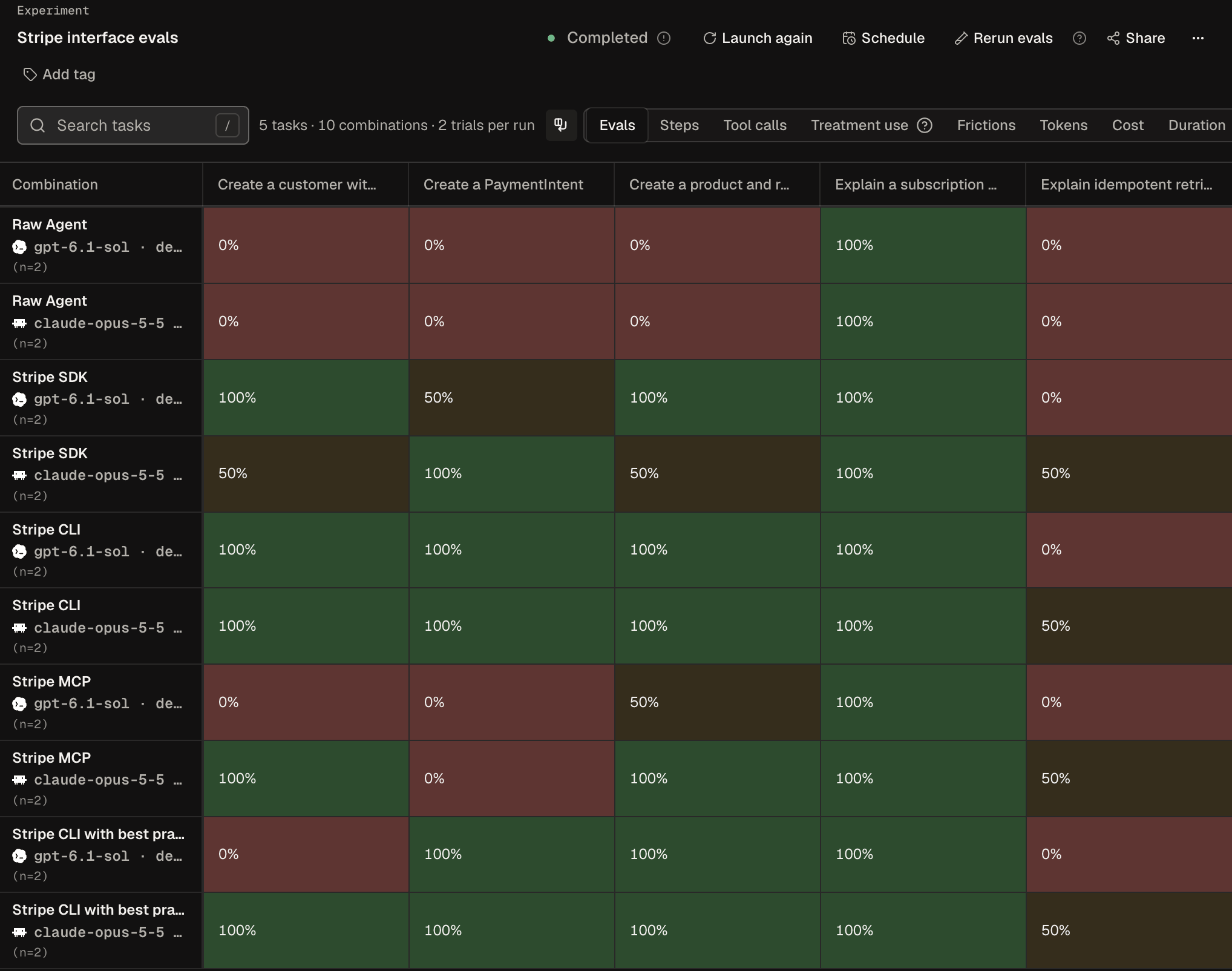
When the runs finish, open the experiment on Matrix, a heat map of pass rates for each task, agent, and treatment. On the Evals metric, hover over a cell to see the trial count, such as “2 of 3 trials passed”. The metric control also shows cost, tokens, duration, and more.With Skill lift, compare each skill version’s cells with the Raw Agent cells for the same task. Matrix shows no lift number: the difference between the cells is the lift.This Matrix is from the larger Stripe interface evals template, turned with Transpose so each row is an agent and treatment and each column is a task.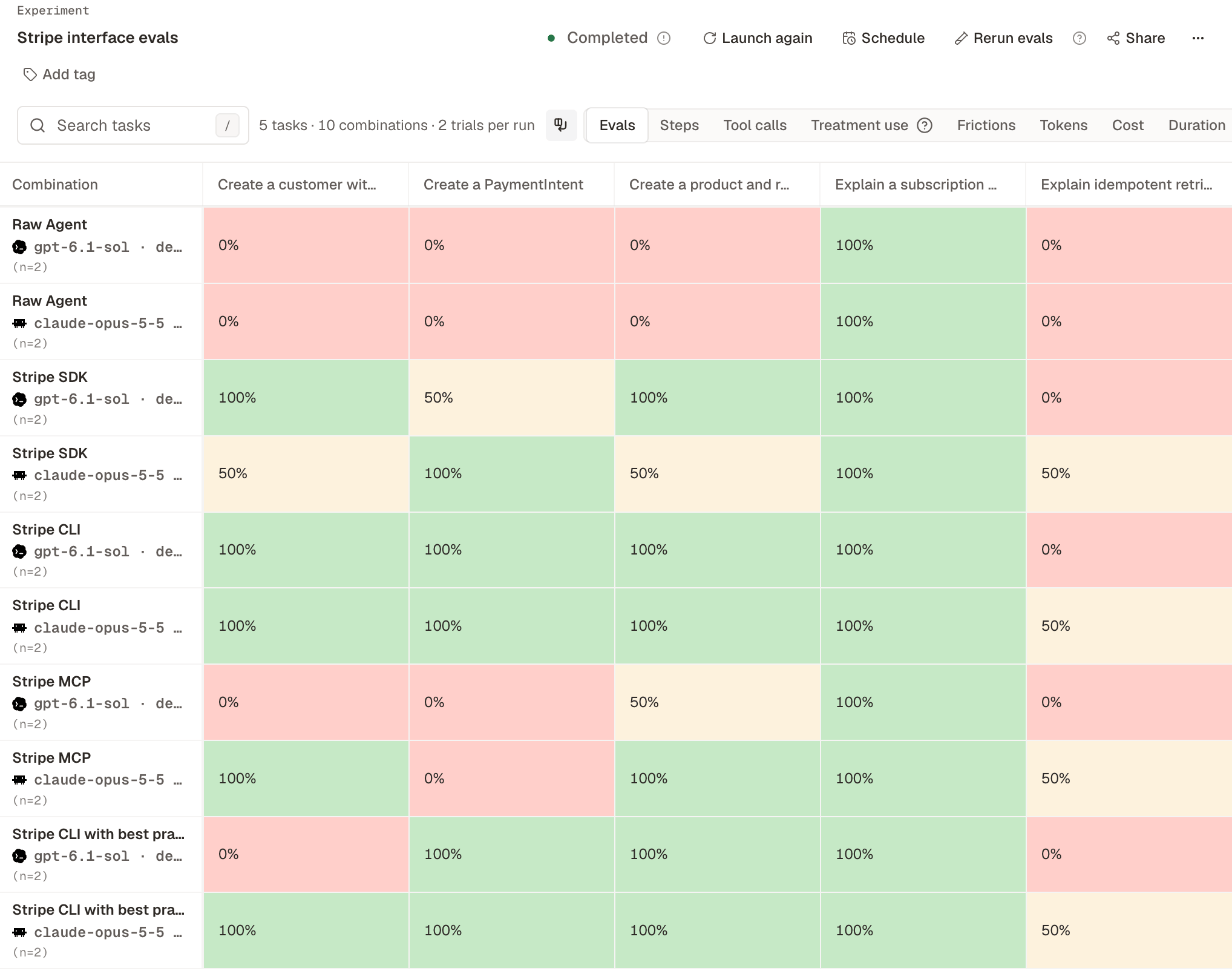
obss results analyze summarize_scope --experiment-id exp_8f2c41d0. From the plugin, ask for a summary: it calls Analyze experiment results (analyze_results).7
Check Frictions and open a run
Select the Frictions tab. Each friction is one problem that agents hit, and it shows where to fix it. Then select Runs and open a run. Its Traces, Output, and Evals tabs show what the agent did, what it produced, and the verdict on each rubric criterion.With Skill lift, a notice can flag runs that hit machine or task frictions. A problem in the task or its machine caused those, so don’t count their results against the agent or the treatment.From the CLI, run
obss frictions list --experiment-id exp_8f2c41d0. From the plugin, ask for the frictions: it calls List a project’s frictions (list_frictions).You launched an experiment and read its Matrix, Frictions, and runs. To ask about the results in plain language, open Ask Obss from the dashboard header.
Use the CLI or the plugin instead
- From your AI assistant: follow Try a first prompt, or build an eval set for your own product.
- From the terminal: follow Run an experiment from the terminal.