
If Sessions says “Sessions need organization access”, sign in through your organization to see them.
Integrations
Profile → Integrations has two lists: Connected apps for your subscriptions and Ask Obss, and MCP connections for your MCP server sign-ins.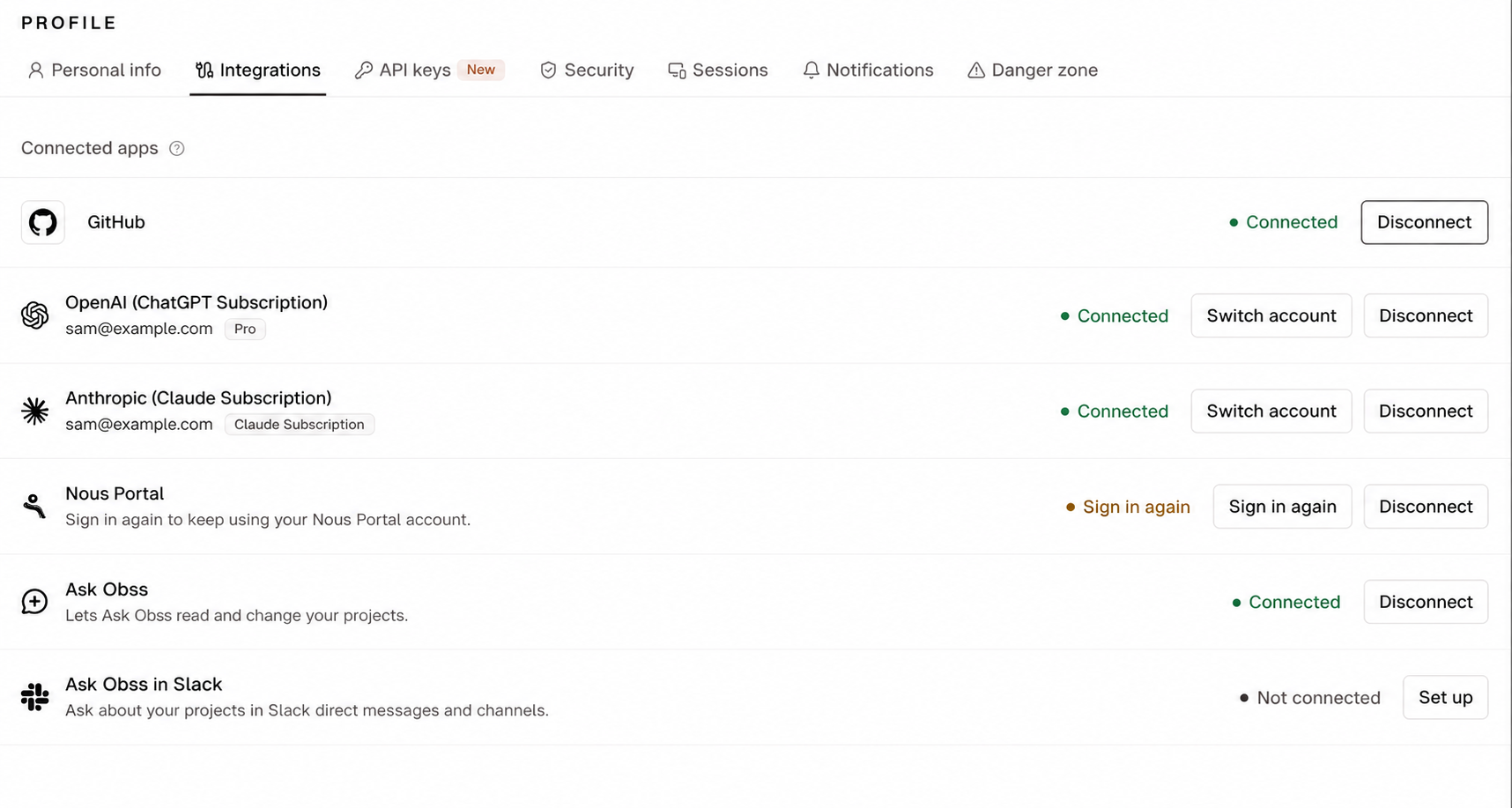
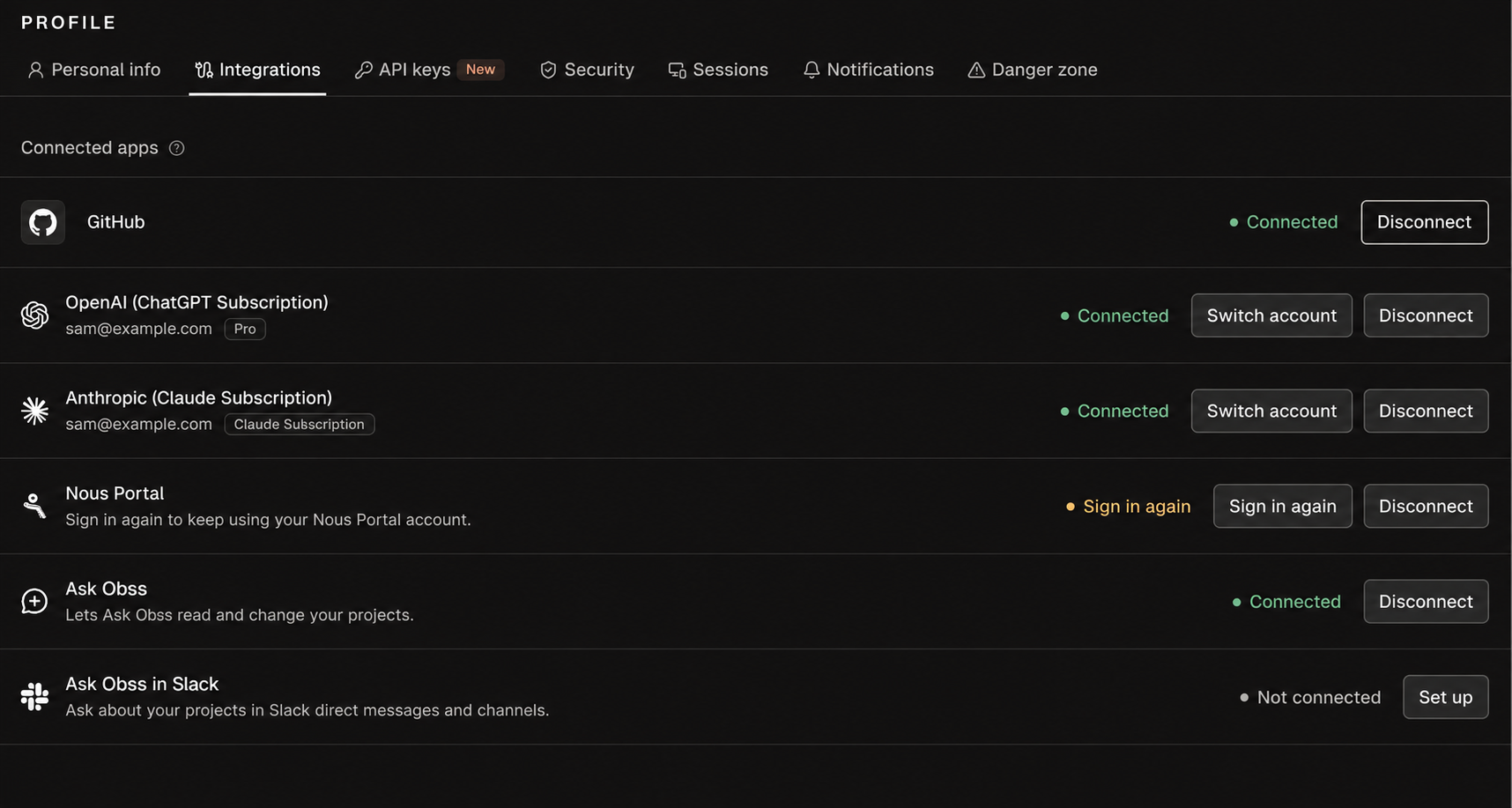
Connected apps
Each subscription has its own plan rules:
- GitHub: needs a paid Copilot plan (Pro, Pro+, Business, or Enterprise).
- OpenAI (ChatGPT Subscription): needs a paid ChatGPT plan (Plus, Pro, Business, Enterprise, or Edu). Runs count toward the plan’s Codex usage limits.
- Anthropic (Claude Subscription): needs a paid Claude plan (Pro or Max). Runs count toward the usage limits that Claude and Claude Code share.
- Nous Portal: runs count toward your Nous Portal account’s usage.
Connect a subscription
- On Profile → Integrations, select Connect on the row.
- Sign in and approve Obss. For ChatGPT and Nous Portal, enter the code that Obss shows. For Claude, approve access in Claude, then paste the authorization code into Obss.
- Turn on the agent under Manage → Agents.
Disconnect an integration
Select Disconnect on a connected row and confirm. New runs that need the connection stop in every project in this organization. Past experiments don’t change, and Obss doesn’t delete your provider account. From the CLI or the plugin, senddisconnect_personal_connection to obss project ai delete or delete_project_ai. You can connect again later, but only in the dashboard, because that’s where you sign in.
To stop Ask Obss from using your account in this organization, select Disconnect on the Ask Obss row, or use the CLI or the plugin. Disconnect Ask Obss explains what changes.
MCP connections
MCP connections lists your sign-ins to MCP servers that your treatments use, such as a server that needs an OAuth sign-in. When a connection needs it, sign in again from its row. Browse MCP servers opens the project’s MCP servers. To check a connection without showing its secrets, useobss mcp accounts inspect or inspect_mcp_account. You can sign in only in the dashboard.
API keys
Create a personal API key to run the CLI where you can’t sign in, such as a CI job or an agent’s machine. The CLI reads it fromOBSS_API_KEY.
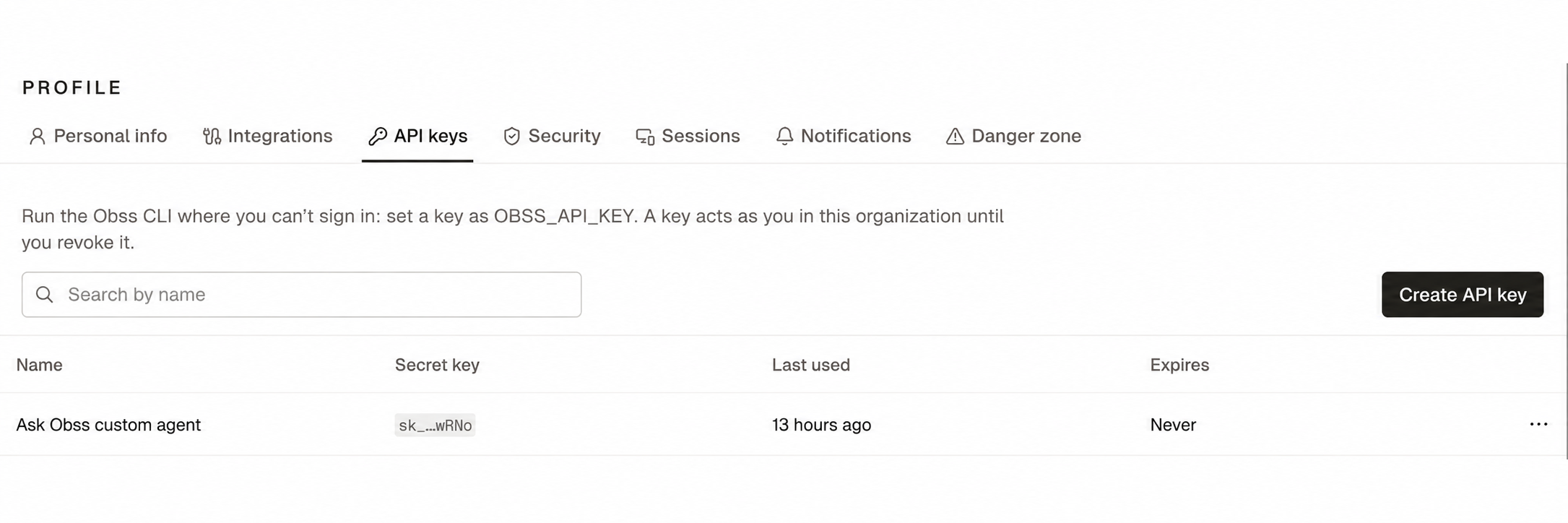
- Open Profile → API keys.
- Create a key and copy it.
- Store it as a secret named
OBSS_API_KEYin your CI, or wherever the CLI runs.
- Organization API keys can’t use the CLI.
- The plugin signs in with OAuth, not API keys.
- Use an API key explains what the CLI does while a key is set, and Run Ask Obss as a custom agent uses a key in an experiment.